Section Views Explained: 7 Types With Drawn Examples
 Braňo Hrivňák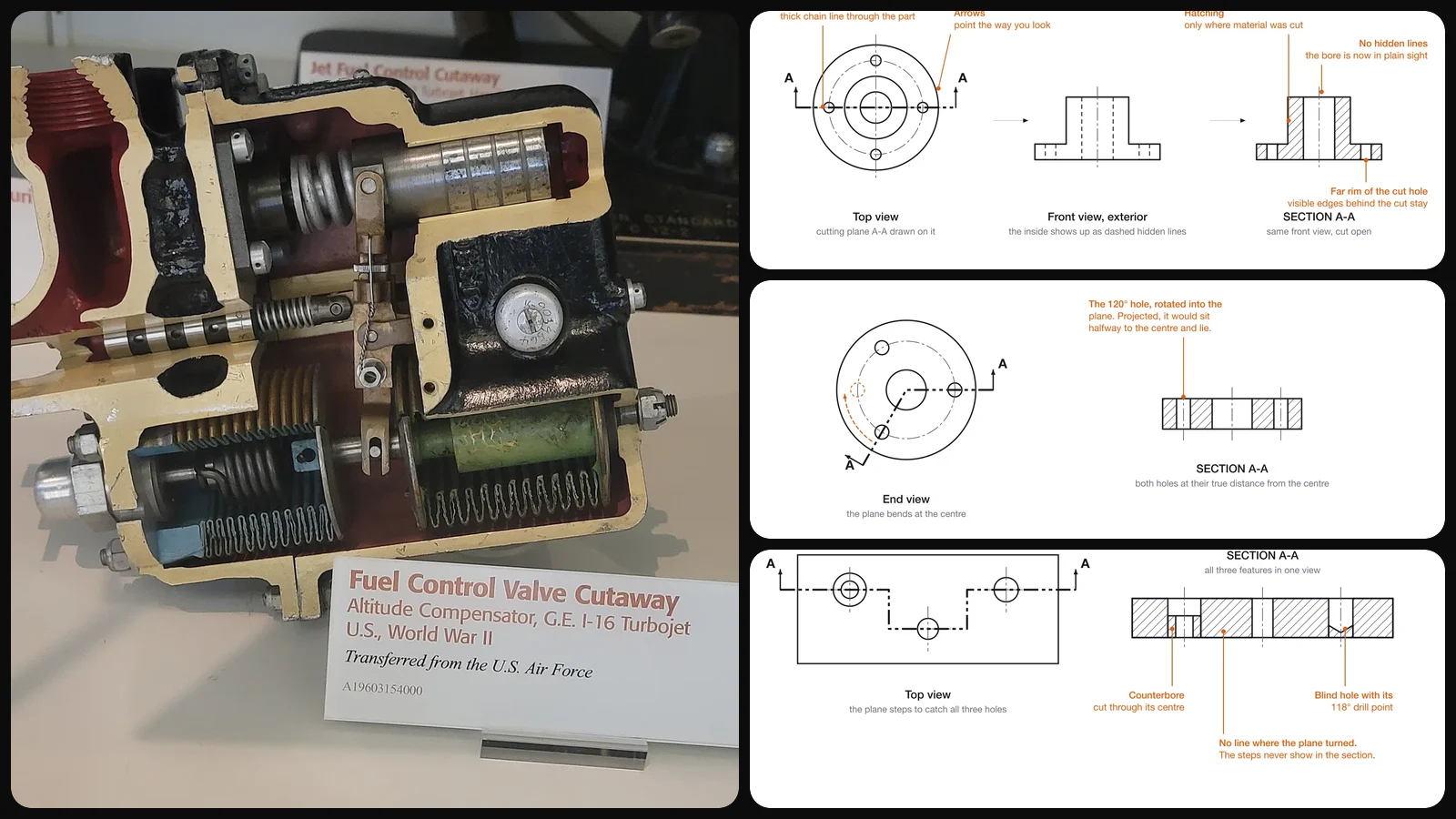
Hidden lines work for simple parts. Add a bore, a counterbore, a few cross holes and a blind pocket, and the front view turns into a tangle of dashes that nobody can dimension cleanly or read with confidence. A section view fixes that by doing on paper what you would do with a bandsaw: cut the part, then draw what you see.
Every drawing in this guide uses the same few example parts, mostly a flanged hub, so you can compare how each section type treats the same geometry. We also cut that hub for real with a free browser tool, near the end.
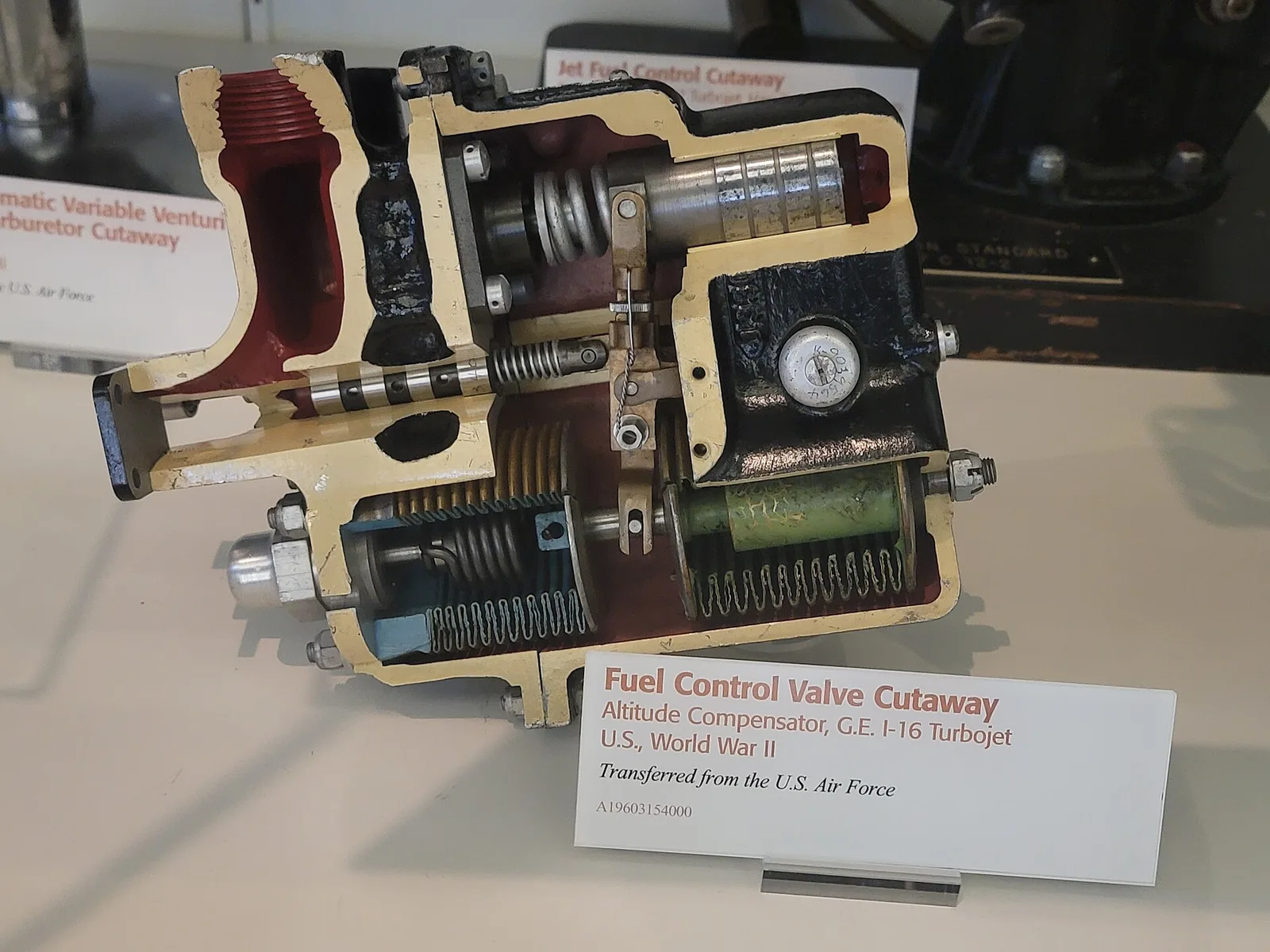
A museum cutaway of a 1940s fuel control valve. The painted cut faces do the same job hatching does on a drawing: they show where material was sliced.
How a section view is made
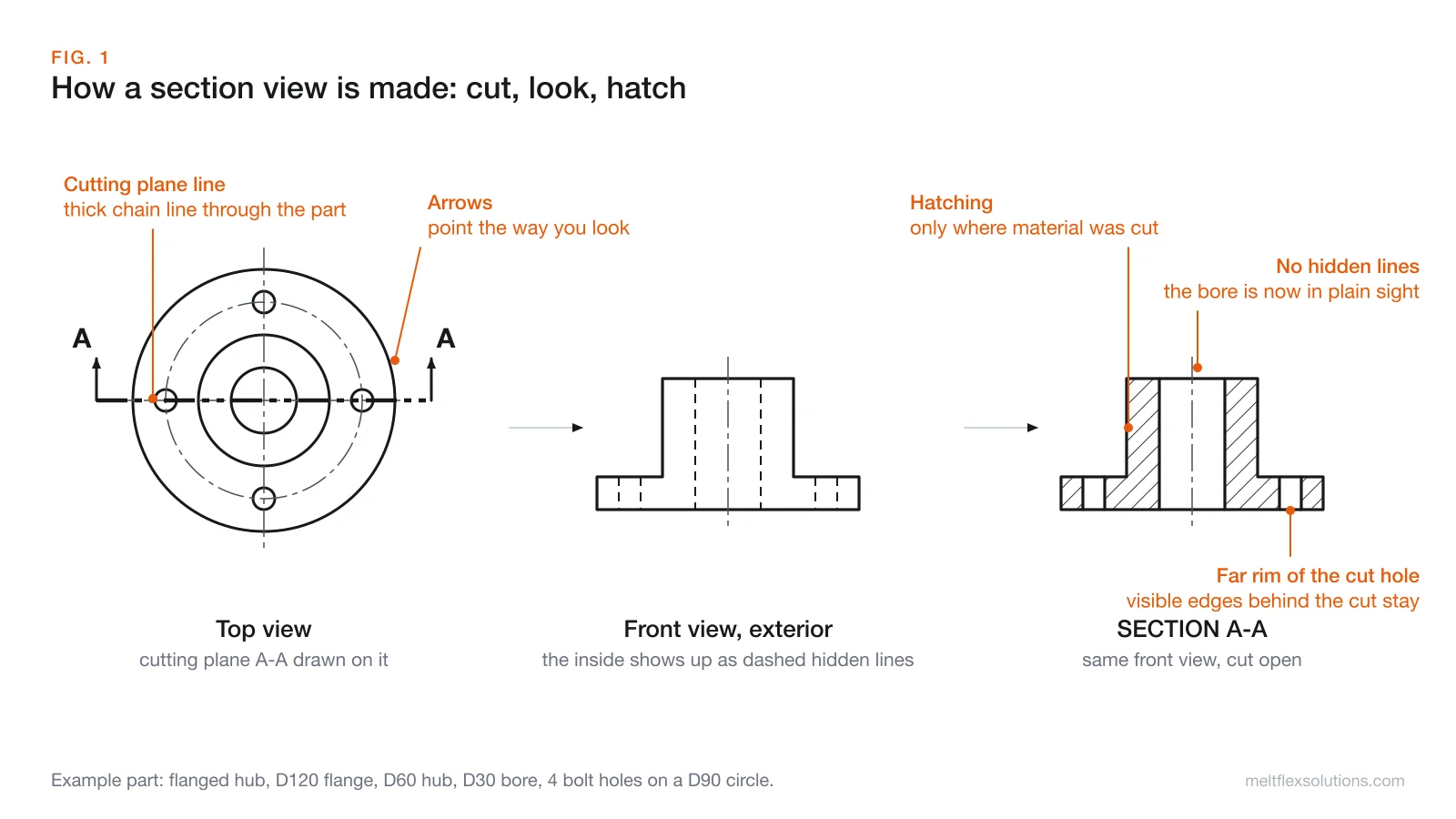
Three things happen, and each one has a drawing convention:
- Cut. A cutting plane line is drawn on an adjacent view to show where the imaginary cut runs. In ASME practice it is a thick line of long dashes with pairs of short ones, or plain thick dashes. In ISO practice it is a thin long-dash dotted line made thick at the ends and wherever it changes direction.
- Look. Arrows at the ends of the cutting plane show the direction you look at the cut. A letter at each end names the section: cutting plane A-A produces SECTION A-A.
- Hatch. Only the solid material the plane passes through gets section lining (hatching), usually thin lines at 45°.
Two details separate a correct section from a careless one:
- Hidden lines are left out. The whole point of the section is that the inside is now visible. Add hidden lines only when one is genuinely needed to avoid another view.
- Visible edges behind the cut stay. Look again at SECTION A-A above: the far rims of the bore and of the cut bolt holes are drawn as solid lines across the openings. Leave them off and the hatched pieces float in space, which is one of the most common mistakes in student drawings and AI-generated drawings alike.
Strictly, ISO separates these ideas: a section shows only the outline lying in the cutting plane, while a cut shows that outline plus the edges beyond it. In everyday US usage, both are called section views. The difference becomes practical at the end of this guide.
1. Full section
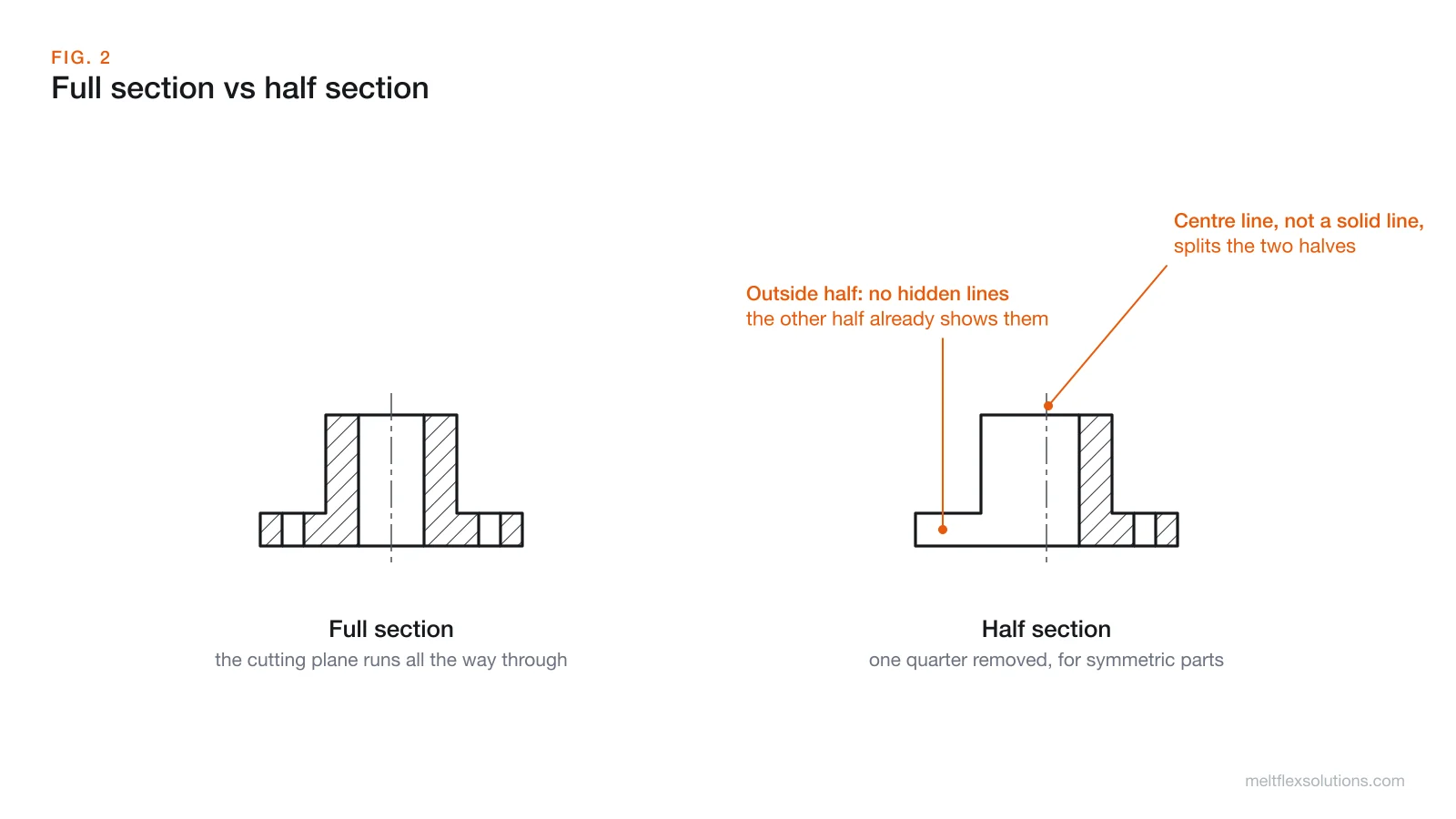
The cutting plane passes all the way through the part, usually along a centre line, and the whole view is drawn cut. It is the default choice when the inside matters more than the outside, which is the case for most turned parts, housings and castings.
Use it when: the interior has the features you need to dimension, and the exterior is simple or shown in another view.
2. Half section
A half section cuts away only one quarter of a symmetric part. Half the view shows the outside, half shows the inside, and a centre line (not a solid line) divides them. Both halves usually omit hidden lines, because the other half already shows the features in question.
Use it when: the part is symmetric and you want one view that carries both the external shape and the internal one. Flanges, pulleys, bushings and valve bodies are classic cases.
Watch out for: drawing a solid line on the axis between the halves. The material is continuous there; a solid line would suggest an edge that does not exist.
3. Offset section
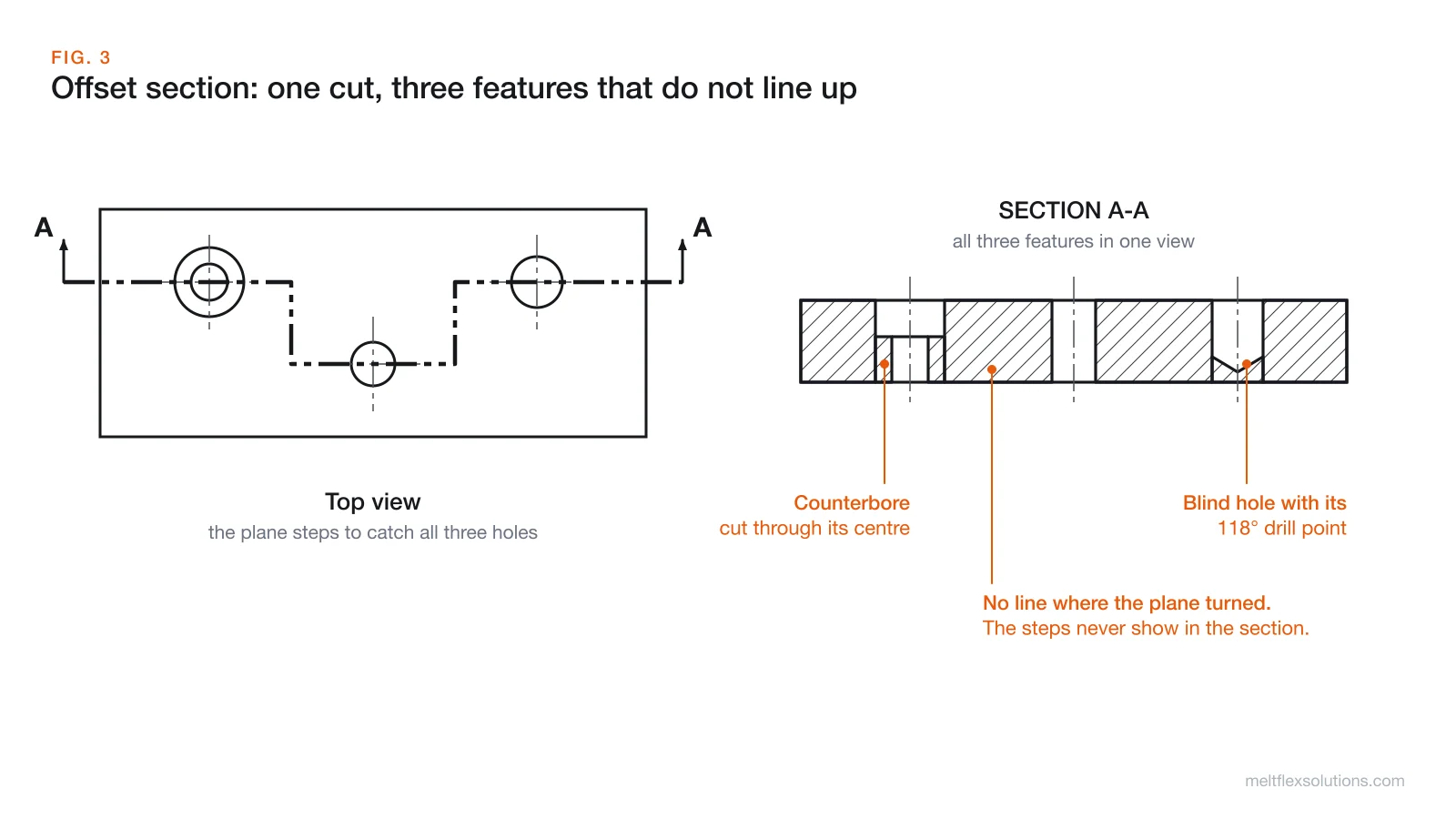
When the features you care about do not sit on one straight line, the cutting plane steps with right-angle bends to pass through each of them. The section view then shows them all as if they lay in one plane.
The rule people miss: the steps are not drawn in the section view. No line appears where the plane changed direction; the hatching runs straight through. The bends live only on the view that carries the cutting plane.
Use it when: holes, slots or pockets are scattered across a plate and one section can catch them all, saving two or three separate views.
4. Broken-out section
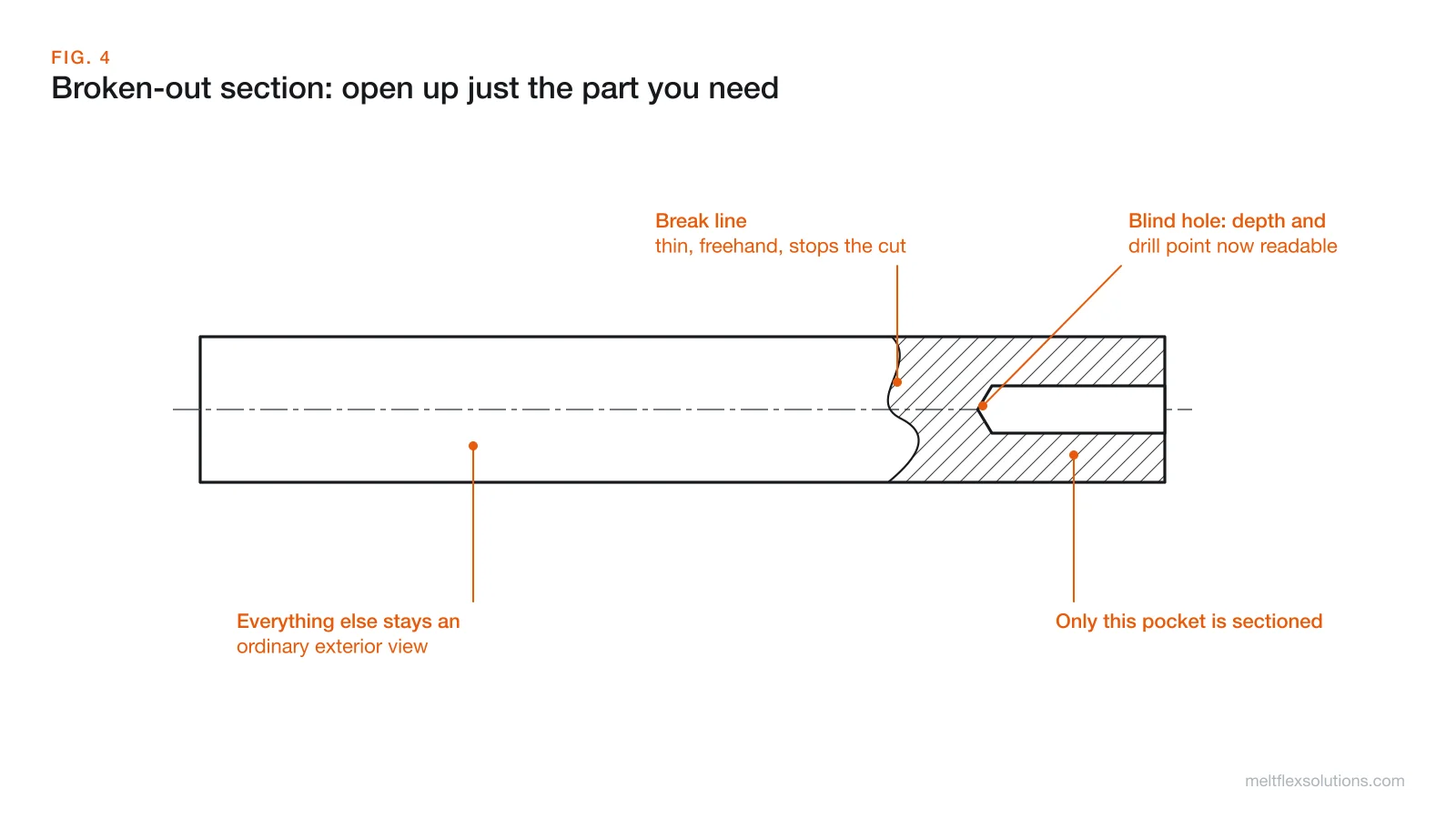
Sometimes only one small feature needs to be shown inside, and cutting the whole part would throw away useful exterior detail. A broken-out section removes just a local patch of material, bounded by a thin, freehand break line.
Use it when: you need the depth of a single blind hole, a keyway, a thread runout or a wall thickness at one spot, and the rest of the view is fine as an exterior.
No cutting plane line is needed; the break line itself shows where the cut is.
5. Revolved section
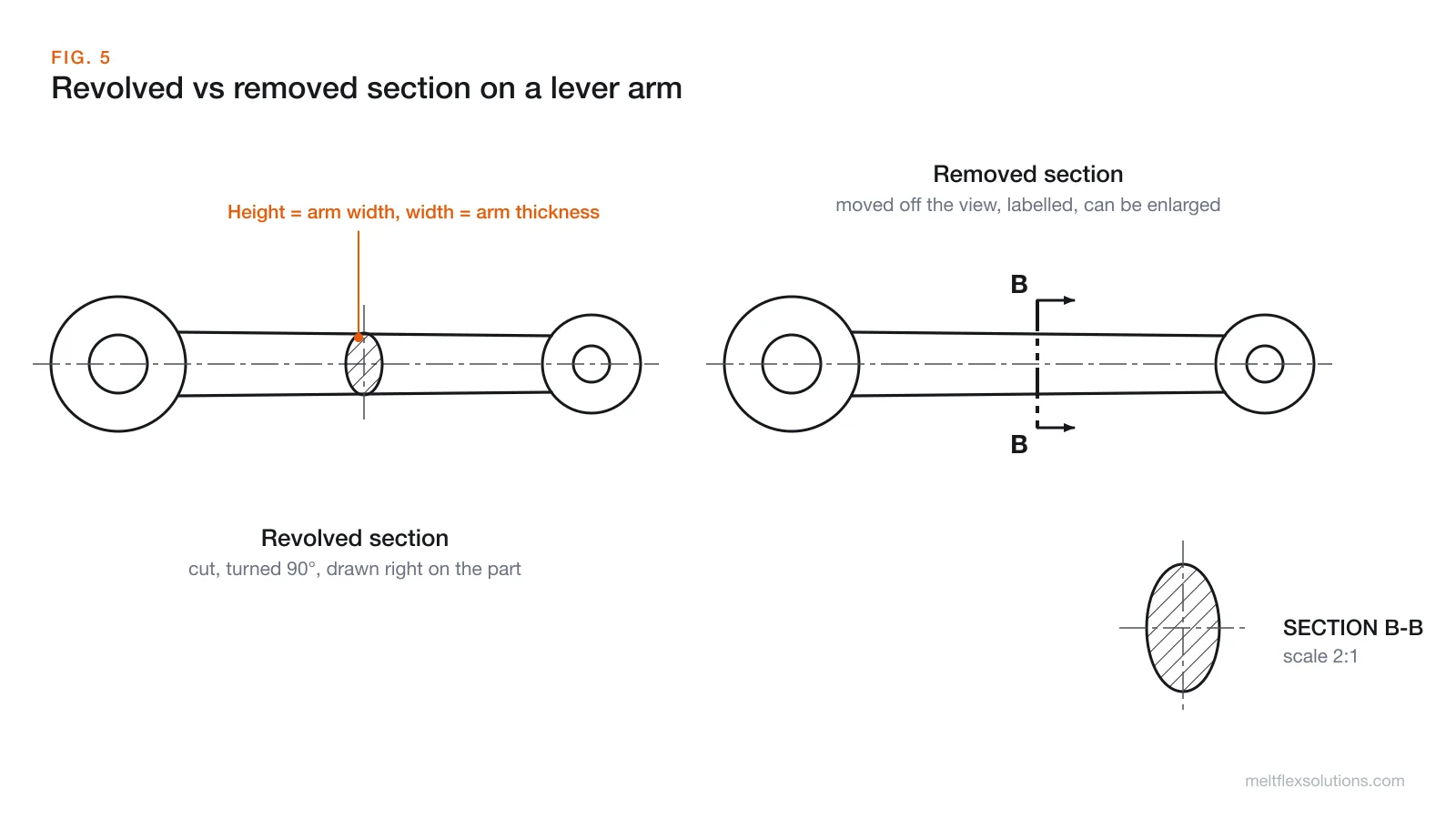
For long parts with a constant or slowly changing cross-section, such as arms, spokes, ribs and rolled sections, you can cut the part across, rotate the cut face 90° and draw it right on top of the view. That is a revolved section.
A detail that gets drawn wrong: the revolved shape must match the part. Its height on the drawing equals the width of the arm at that point, and its width equals the arm's thickness. A revolved section taller than the arm it sits on is a drawing error, however neat it looks.
Visible lines of the part may be broken around the revolved section to keep it readable, or left running through. Either is accepted.
6. Removed section
A removed section is the same idea, but the cut face is drawn away from the view, next to it or elsewhere on the sheet. It gets a cutting plane line with arrows and letters on the main view, and a label such as SECTION B-B under the section itself.
Why bother moving it: a removed section can be drawn at a larger scale (SECTION B-B, 2:1) and dimensioned without crowding the main view. Several removed sections along one part, B-B, C-C, D-D, show how a cross-section changes along a shaft or a forging.
Keep it findable: place it near the cutting plane, keep the same orientation as the cut, and if it lands on another sheet, note the sheet number. That last part is how construction drawings handle it too; see how to read construction blueprints for the section markers they use.
7. Aligned section
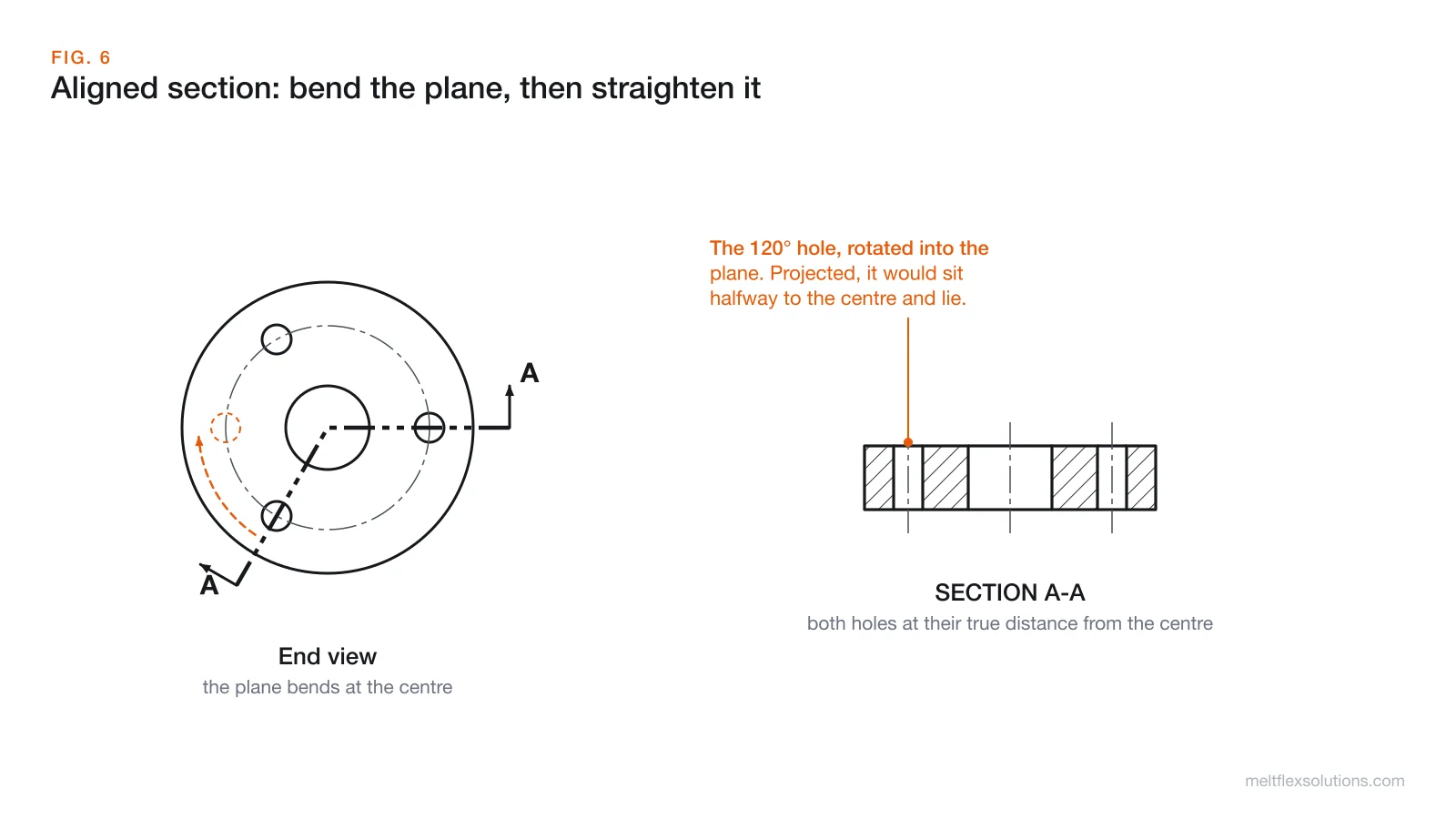
Parts with features on a bolt circle, angled arms or radial ribs rarely have two features on one straight line through the centre. An aligned section bends the cutting plane at the centre to pass through the features, then rotates the angled part of the cut into the plane of the rest before drawing it.
Why rotate instead of project: if you projected the 120° hole straight across, it would appear halfway between the centre and its real position (cos 120° is -0.5), and the drawing would show a hole that does not exist. Rotated, it appears at its true radius, which is what the machinist needs.
Hatching rules most guides skip
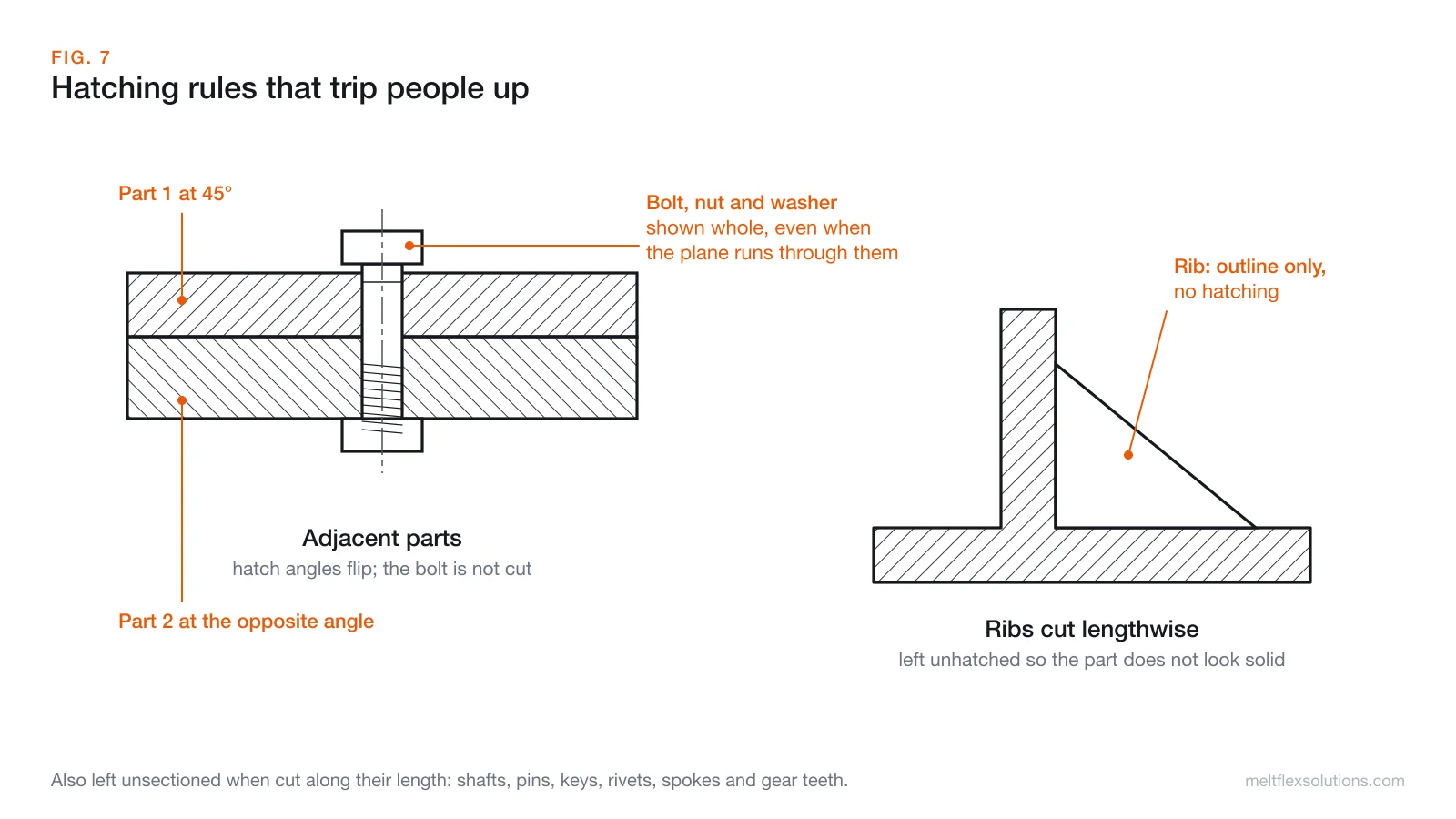
Getting the lines right is half of a good section. The rules that matter in practice:
| Rule | Why |
|---|---|
| Thin lines, evenly spaced, usually at 45° | Reads as "cut material" without competing with the outlines. |
| Adjacent parts hatched at different angles or directions | So you can tell where one part ends and the next begins in an assembly. |
| Same part, same hatching everywhere it appears in a view | Separate hatched islands with matching lines read as one part. |
| Avoid hatching parallel or perpendicular to the main outline | It blends into the edges. Switch to 30° or 60° for parts drawn at 45°. |
| Thin parts (gaskets, sheet metal) may be filled solid black | Hatching on something 1 mm thick is unreadable. |
| Shafts, bolts, nuts, pins, keys, rivets and washers are not sectioned when the plane runs along their length | They have no interior worth showing, and hatching them hides their shape. |
| Ribs, webs and spokes cut lengthwise are left unhatched | Hatching them makes a thin rib look like a solid block of metal. |
General-purpose hatching is the norm in mechanical drawing. Material-specific patterns exist but are optional and mostly used in architecture, where a construction drawing set uses them to tell concrete from masonry from insulation.
Choosing the right section type
| You need to show | Use |
|---|---|
| The whole interior of a part | Full section |
| Inside and outside of a symmetric part in one view | Half section |
| Several features that are not in a line | Offset section |
| One small internal feature | Broken-out section |
| The cross-section of an arm, rib or spoke | Revolved section |
| A cross-section that needs room, dimensions or a bigger scale | Removed section |
| Features on a bolt circle or at an angle | Aligned section |
Video: section view types
We cut our hub for real: getting a section out of a 3D model
If you have the part as a 3D model, you do not have to work out a section by hand. We exported the flanged hub used in this guide as an STL, without its bolt holes to keep it simple, and opened it in the free STL to DXF converter from TechDraw AI. It runs in the browser, so the file never leaves your computer.
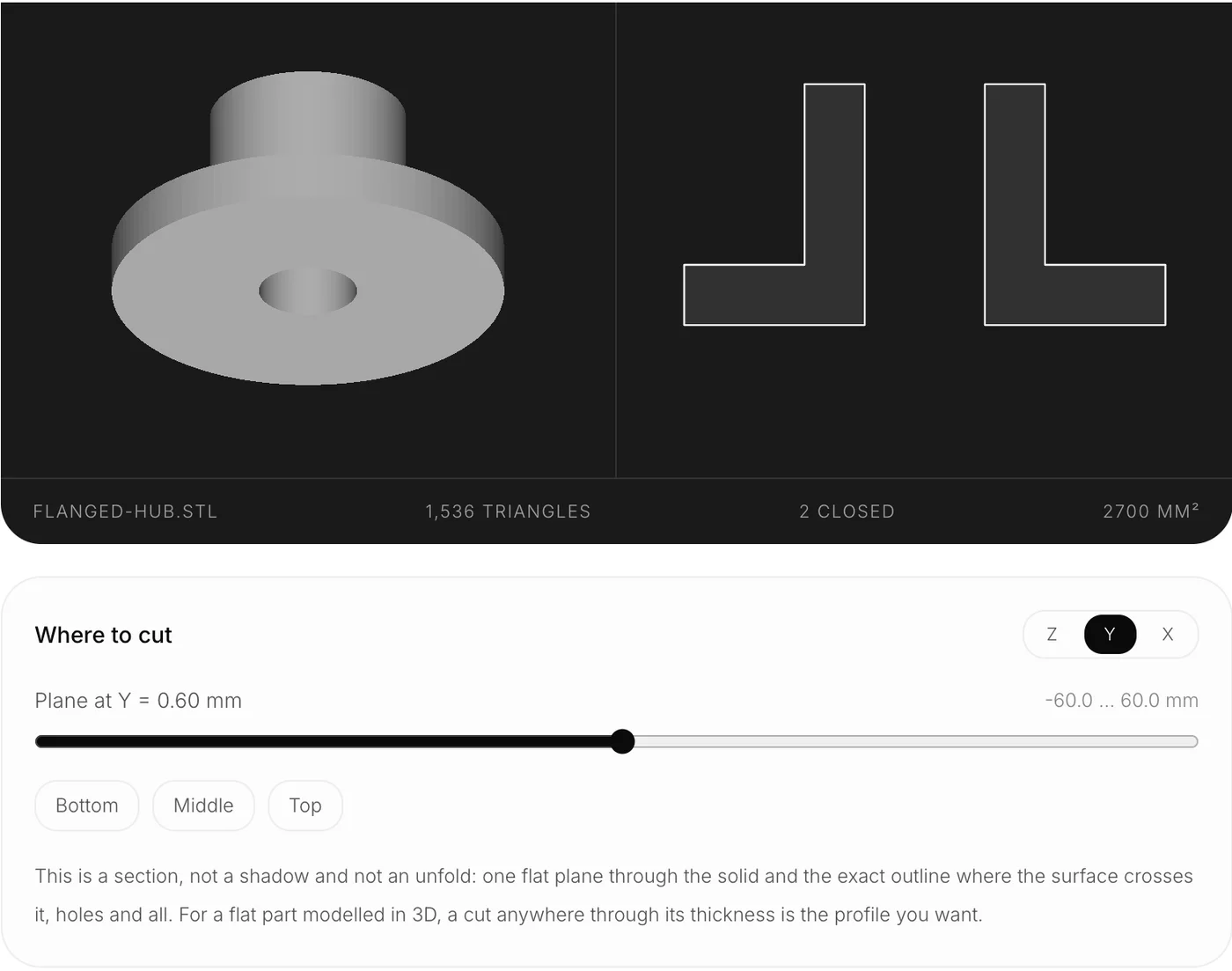
Choosing the Y plane and putting the cut just off the centre gave two closed L-shaped outlines with a total cut area of 2700 mm². That matches the hand calculation for this hub: each side is a 45 × 15 mm flange strip plus a 15 × 45 mm hub wall, 1350 mm², times two. The tool exports the outline as a DXF at true millimetres, so it drops straight into a drawing as the cut face.
Two things we learned doing it:
- Nudge the plane off the exact axis. A mesh is made of flat triangles, and on a turned part many of their corners sit exactly on the centre plane. A plane running precisely through those corners is the hardest case for any mesh slicer, so we cut half a millimetre off centre, which changes nothing you would ever dimension. Either way, check the closed-outline count and the area against what you expect before you trust a section.
- What you get is a section in the strict ISO sense. The tool gives you the cut face only, which is exactly what you hatch. The visible edges beyond the cut, such as the far rim of the bore, are yours to add when you turn it into a section view on the drawing.
If the part only exists physically, TechDraw AI starts from a photo instead: you add a couple of measured lengths and it draws the front, top, side and isometric views to scale, with dimensions and a title block, ready to export as DXF or DWG. From there, adding the section your drawing needs is a few minutes of CAD rather than an afternoon of redrawing. Our guide to turning a sketch into CAD with AI covers where that kind of automation helps and where it does not.
Frequently asked questions
What is a section view in technical drawing?
A section view is an orthographic view drawn as if the part had been cut along an imaginary cutting plane and the near piece removed. Cut material is hatched, interior features are drawn with solid lines, and hidden lines are normally omitted. It is used when a part's internal features would otherwise be shown by confusing hidden lines.
What are the types of section views?
The common types are full section, half section, offset section, broken-out section, revolved section, removed section and aligned section. Assembly sections, which cut through several parts at once, and auxiliary sections, taken on an inclined plane, are also used.
What is the difference between a full section and a half section?
A full section cuts all the way through the part and shows the whole view cut. A half section cuts away only one quarter of a symmetric part, so half the view shows the outside and half shows the inside, divided by a centre line.
What is the difference between a revolved and a removed section?
Both show the cross-section of a long part. A revolved section is rotated 90 degrees and drawn directly on the view. A removed section is drawn away from the view, labelled with letters such as SECTION B-B, and can be drawn at a larger scale.
Why are ribs not hatched in a section view?
When the cutting plane runs along a thin rib or web, hatching it would make the part look like a thick solid block. Leaving the rib unhatched, with its outline drawn, shows correctly that the part is mostly hollow with a thin stiffener.
Which way do the arrows on a cutting plane line point?
The arrows point in the direction of sight: the direction you look at the cut surface to draw the section. The section view shows what you see looking that way.
Do you show hidden lines in a section view?
Normally no. Hidden lines are left out of section views because the cut already exposes the interior. They are added only when a hidden feature would otherwise need an extra view.
How do I get a section from a 3D model or STL file?
In CAD, use the section view tool on the drawing. If you only have a mesh such as an STL, a plane-section tool like TechDraw AI's free STL to DXF converter cuts the mesh at the plane you choose and exports the exact outline as a DXF. Avoid placing the plane exactly through mesh vertices, and check that every outline is closed.
Section views are where a drawing stops describing a shape and starts describing a part. Once cutting planes, hatching and the seven types are second nature, you can read a crowded assembly in seconds. If those assemblies are welded, our guide to welding symbols covers the other half of what is on the sheet.
Sources and further reading
- ASME Y14.3, Orthographic and Pictorial Views: the US standard that covers section views.
- Engineering drawing, Wikipedia: views, line types and sectioning conventions.
- Multiview orthographic projection, Wikipedia: the projection system section views are built on.
- Hatching, Wikipedia: history and conventions of hatching in drawing.
- ISO 128, Technical product documentation, General principles of representation, which covers views, sections and cuts.
Spending too many hours redrawing parts that already exist? Book a free call and we will map out what can be automated.
Image credits: diagrams by MeltFlex Solutions. Fuel control valve cutaway by Votpuske, CC BY 4.0 via Wikimedia Commons. TechDraw AI screenshot taken by us on 23 October 2026.