Sketch to CAD with AI: How to Turn a Hand Drawing into a Technical Drawing in 2026
 Braňo Hrivňák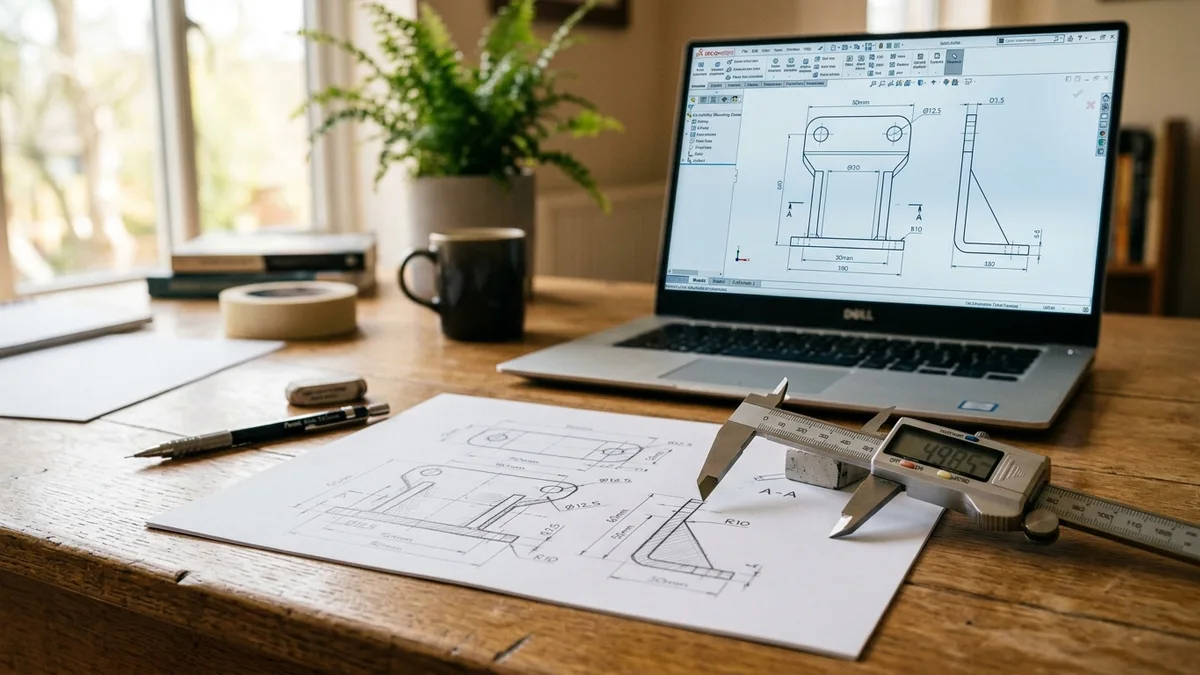
Every engineer and drafter has the same drawer somewhere. The one full of napkin sketches, marked-up printouts, and whiteboard photos that someone, eventually, has to redraw cleanly in CAD.
That redraw is slow, boring, and quietly dreaded. So the promise of sketch to CAD is easy to fall for: snap a photo of a hand drawing, wait a few seconds, get back a clean technical drawing you can edit.
In 2026 that promise is real, but only partly. The tools are genuinely useful now, and they are also worse than the marketing suggests.
We build AI systems for businesses, including document and drawing automation, so we look at this without the sales pitch. Here is the honest version: what sketch-to-CAD AI does, where it shines, where it quietly fails, and how to get a usable result instead of a frustrating one.
What "sketch to CAD" actually means
The phrase covers two very different jobs, and confusing them is where most disappointment starts.
- 2D sketch to 2D drawing. You draw a part on paper, the AI traces it into clean lines, applies your dimensions, and exports a vector file you can edit. This is the "redraw my sketch for me" version, and it is what most people actually need.
- Sketch or photo to 3D model. The AI guesses depth and geometry to build something you can rotate and send to manufacturing. Far more ambitious, and far more variable in quality.
There is one more distinction the tool pages love to skip:
- Parametric output is built from editable features and real relationships. Change a dimension and the model updates.
- Mesh or traced output looks right but is awkward to edit properly.
Before you trust any tool, find out which one you are getting. It changes everything about what you can do next.
How AI converts a sketch to CAD, step by step
Under the marketing, almost every tool runs the same pipeline:
- Upload a photo, scan, or digital sketch.
- Detect the lines, edges, and shapes, separating the real drawing from shadows, grid paper, and coffee stains.
- Read any text and numbers you wrote, to pick up dimensions and labels.
- Rebuild the drawing as clean vector geometry, snapping wobbly hand lines into straight edges and proper arcs.
- Export to a CAD format you can open and edit.
The quality of step two decides everything after it. If the AI cannot cleanly see your lines, nothing downstream will save the result. That single fact is why drawing preparation matters more than which tool you pick, and we will come back to it.
What kinds of input convert well
Not all sketches are equal in the eyes of an AI. A clear pattern shows up fast.
Clean pencil or pen sketches
A sketch drawn with consistent line weight on plain white paper is the easy case. Clear edges, no clutter, good contrast. These convert reliably because the AI has very little to guess at.
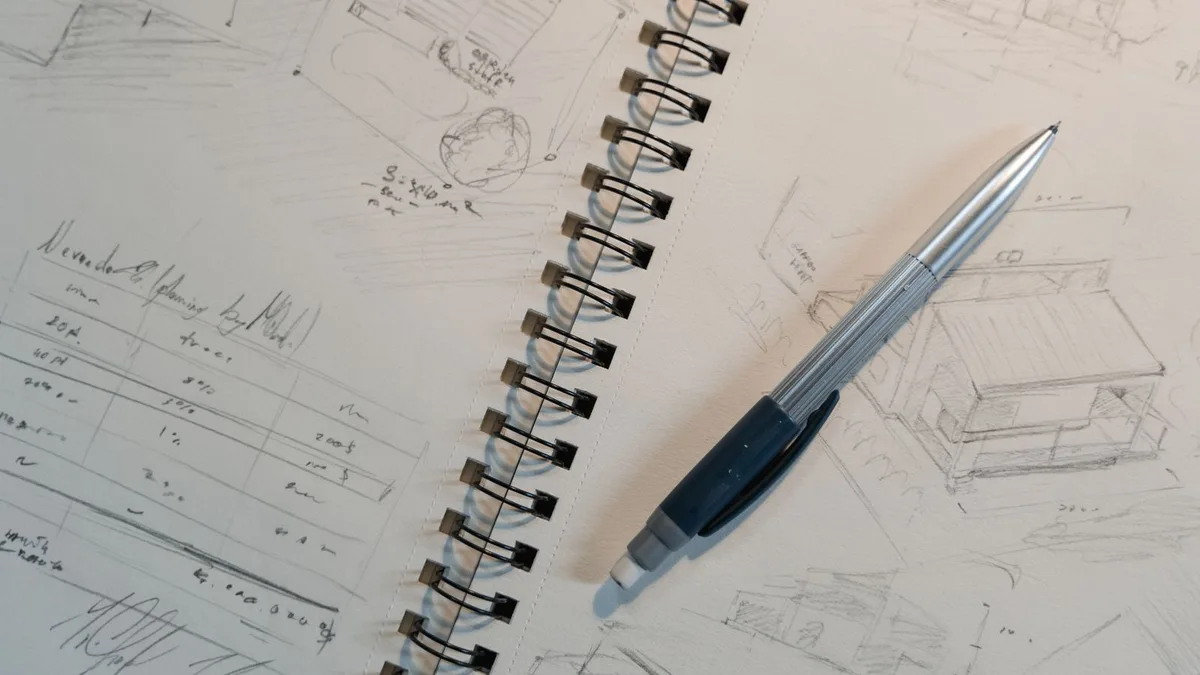
Clear hand sketches like these are the easiest possible input. The cleaner the lines, the better the conversion.
Whiteboard photos
These are the hardest common input. Glare, faint marker, reflections, and your shooting angle all fight the AI. You can still get a result, but expect to clean it up, and expect the occasional invented line that was really just a smudge.
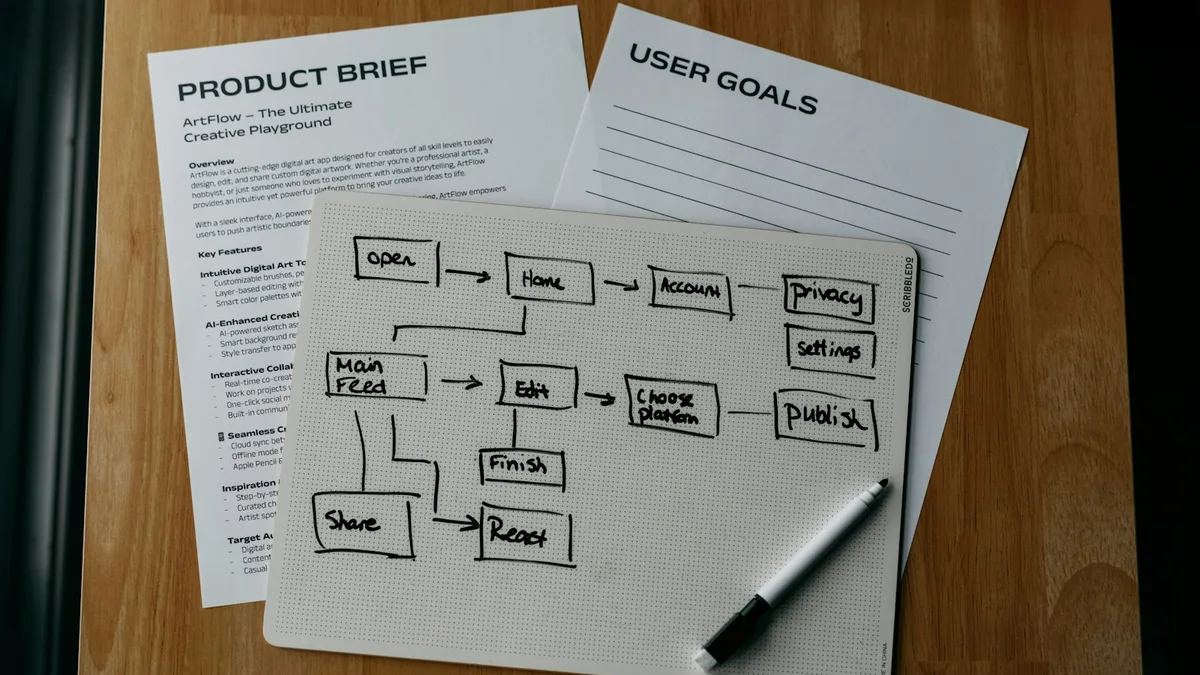
Whiteboard captures are the hardest case. Glare and faint marker give the AI a lot to misread.
Annotated, dimensioned sketches
If you write clear dimensions and labels, modern tools genuinely try to read and apply them. Neat printed numbers work far better than rushed handwriting. A misread dimension is worse than no dimension, because it looks correct until it is not.
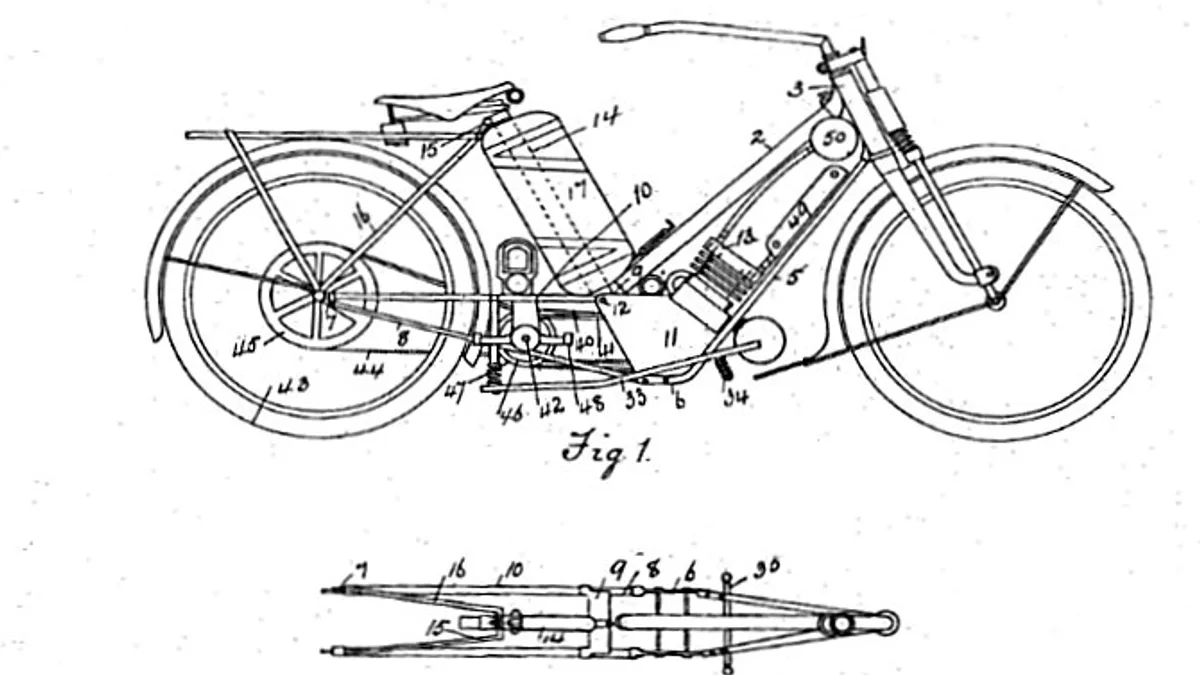
Clear technical drawings with labelled parts and figures give an AI the most to work with.
Photos of existing parts
Some tools trace a photo of a real object into a drawing or model. This works for simple geometry and struggles the moment perspective, curves, or hidden features appear. A single photo cannot show the back of a part, and the AI will happily guess at what it cannot see.
How accurate is it really? A 2026 reality check
This is the part the product pages skip, and the part that protects you.
- Simple geometry: flat brackets, basic outlines, single-view parts. The better tools are impressive here. Clean lines, close proportions.
- Real complexity: multiple views, tight tolerances, curved surfaces, interacting features. Accuracy drops off quickly and you start fixing errors by hand.
Two failure modes show up again and again:
- Dimension misreads. Handwritten numbers get read wrong often enough that you cannot trust a single one without checking it against your original.
- Invented geometry. Hand the AI an ambiguous sketch and many tools will confidently fill the gap with something plausible and wrong, rather than admitting they are unsure.
The rule we give people is simple: treat the AI output as a fast first draft drawn by a talented intern who never asks questions. It saves you the tedious tracing. It does not save you the checking.
Sketch to CAD vs text to CAD vs image to CAD
It helps to know which input method fits which task.
| Approach | You give it | Best for | Main weakness |
|---|---|---|---|
| Sketch to CAD | A hand drawing or scan | Redrawing real sketches you already have | Sensitive to messy or low contrast input |
| Text to CAD | A written description | Standard parametric parts from scratch | Cannot capture a specific shape in your head |
| Image to CAD | A photo of an object | Reverse drawing simple existing parts | Guesses everything it cannot see in the photo |
Most real workflows use more than one. You might describe a standard bracket in text, but sketch the custom mounting plate that only exists in your head. Pick the input that carries the most information about what you actually want.
How to prep your drawing for the best result
This is where you get the biggest improvement for the least effort, and almost nobody talks about it.
- Use good contrast. Dark pen on white paper beats faint pencil every time.
- Shoot straight on. No angle, so the AI does not fight perspective distortion.
- Light it evenly. No glare, no hard shadows across the drawing.
- Keep one dimension readable so the tool can calibrate scale, and print your numbers rather than scrawling them.
- Separate the drawing from the noise. A clean sheet with just the part beats a busy page with three other ideas crowded around it.
Spend two minutes on a clean photo and you save twenty minutes of cleanup later. Input quality is the single biggest lever you control.
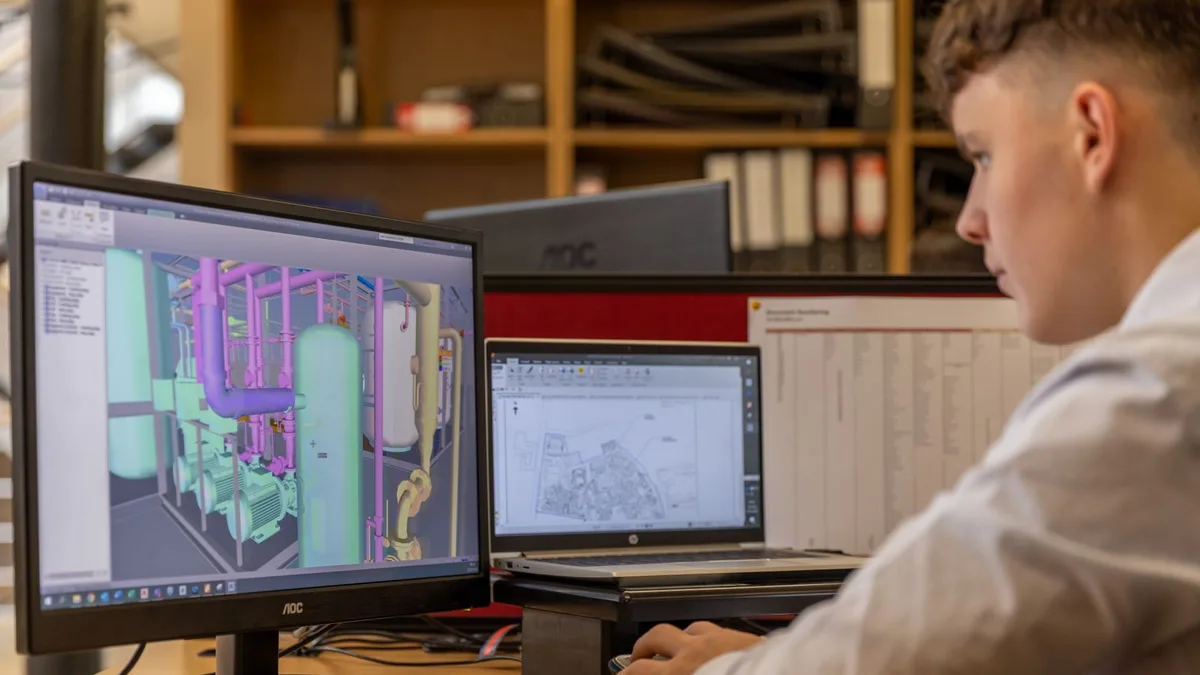
A clean conversion lands you here faster: editable geometry on screen, ready for real work.
File formats and what you can edit afterward
The export step decides how useful the result actually is.
- DXF and DWG are the standard 2D CAD formats. If you want to keep drafting in your normal tool, this is what you want out.
- STEP is the format for editable 3D models that move cleanly between different CAD programs.
- STL is for 3D printing and meshes. It looks like a model, but it is awkward to edit as a real engineering part.
Before you commit to a tool, confirm it exports the format your workflow actually uses. A beautiful result trapped in a format you cannot edit is just a screenshot.
Where it still falls short, and where a human still wins
Be clear eyed about the limits. AI does not understand intent. It does not know that the bracket has to clear a bolt head you forgot to draw, or that the tolerance on one edge is the only one that matters. It does not know your standards, your title block conventions, or why the part is shaped the way it is. It reads marks on a page and produces clean geometry from them, nothing more.
The drafters and engineers getting real value are not pretending the AI is a colleague. They use it to delete the tracing, then bring judgment, standards, and accountability in on top. The skill did not disappear. The busywork did.
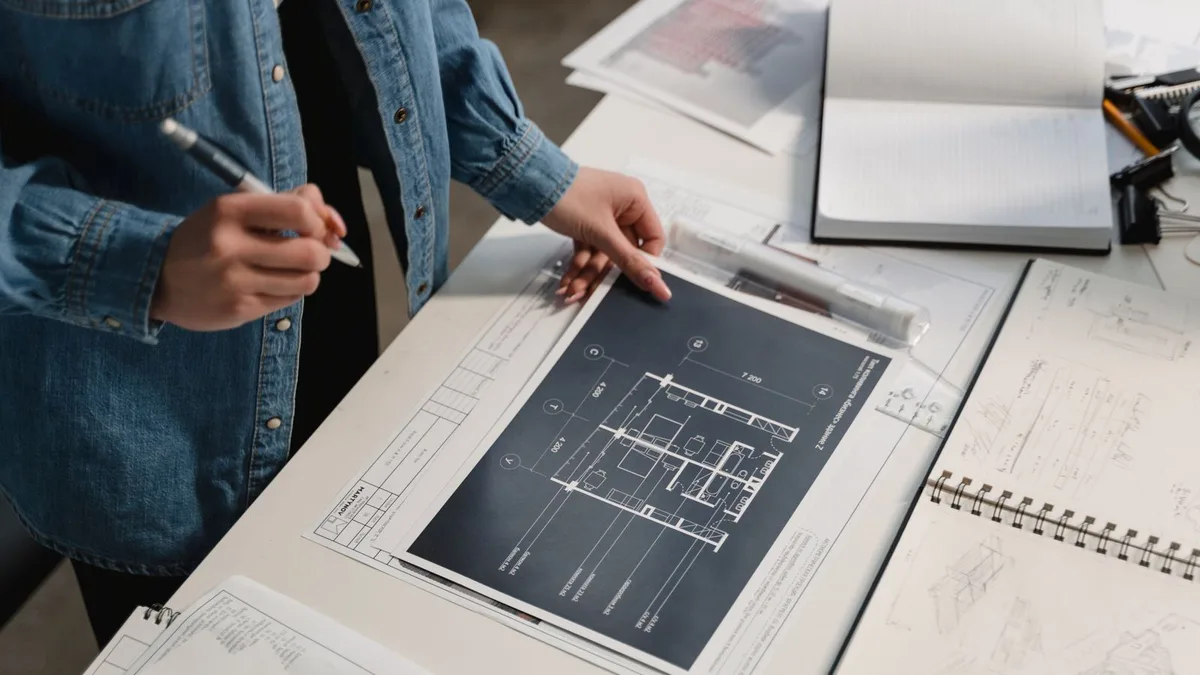
The AI drafts. The engineer still owns the judgment, the standards, and the sign-off.
Where this fits an engineering or drafting workflow
Here is the thing we tell every client: one clever tool is a toy, a connected workflow is an advantage.
The real time sink is rarely the single drawing. It is everything around it: the intake of a customer sketch, the cleanup, the dimension check, the export into your system, the revision when the client changes their mind, and the version that gets lost in an email thread.
A sketch-to-CAD step is most powerful when it is wired into that flow, so a drawing comes in, gets converted and routed automatically, and lands in front of a human only for the judgment call that actually needs one.
At MeltFlex Solutions we design those connected systems. The conversion tool is the raw material. The advantage comes from how you wire it into how your team really works, which is exactly what we build and deploy. We built this end to end in TechDraw AI, which turns a sketch or photo into a CAD-ready technical drawing.
The goal was never to replace the drafter. It is to delete the tedious redraw that sits between a good sketch and a finished drawing.
Questions people ask us
Can AI really convert a hand-drawn sketch to CAD? Yes, for 2D cleanup it works well today, especially on clear sketches. For complex 3D parts it is a starting point that needs checking, not a finished model.
Is sketch-to-CAD accurate enough for manufacturing? Not on its own. Treat the output as a draft and verify every dimension against your original before anything gets made.
Does it output editable files or just a flat image? The good tools export real vector or parametric files like DXF, DWG, or STEP. Always confirm this before you rely on a tool, because some only give you a traced image.
Can AI read my handwritten dimensions? It tries, and it does better with neat printed numbers. Rushed handwriting gets misread, so never trust a converted dimension without checking it.
Is there a free sketch-to-CAD tool? Many tools have a free tier with limited conversions or watermarked exports. Editable exports and higher volume usually sit behind a paid plan.
Will AI replace drafters? No. It removes the slow tracing and lets drafters spend their time on standards, judgment, and the decisions that actually carry risk.
So that is the honest version. Sketch-to-CAD is genuinely useful in 2026, the redraw really does get faster, and the win is not the tool by itself. It is what you build around it.
Sources and further reading
- Technical drawing - Wikipedia overview of drawing conventions, views, and dimensioning.
- Computer-aided design (CAD) - what CAD is and how it is used across engineering.
- AutoCAD DXF - the interchange format behind DXF and DWG exports.
- Converting paper drawings to CAD - Scan2CAD guide to scanning and vectorising drawings.
Want to turn drawing cleanup and conversion into a workflow that saves your team real hours? Book a free call and we will map out where automation pays off fastest.
Image credits: photos via Pexels (Tima Miroshnichenko, ThisIsEngineering) and Unsplash (Kelly Sikkema); patent drawing in the public domain via Wikimedia Commons.